Public beta · APFS drives on Windows 10 and 11 · x64 and ARM
Open Mac drives on Windows. Read, write, and unlock FileVault.
Plug in a USB stick or external SSD that was formatted on a Mac and it shows up in This PC like any other drive. If it’s encrypted, Ferry asks for the password and opens it.
Free during the public beta, and reading stays free after it. No account, no telemetry.
Version 0.9.0 · 85 MB · SHA-256 · What’s new
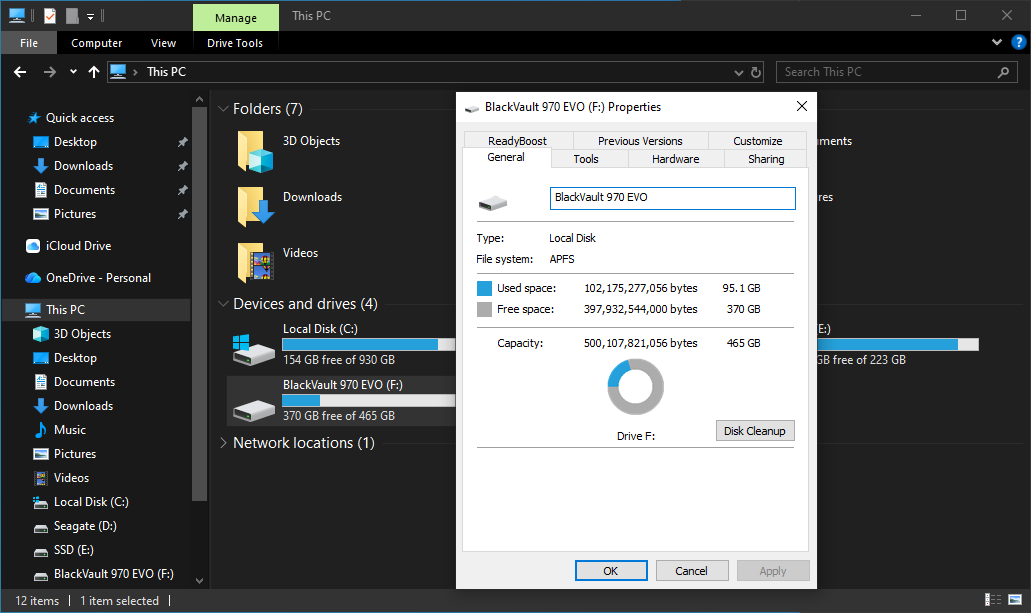
A Mac SSD in File Explorer. Windows lists its file system as APFS.
It is just another drive
Once Ferry mounts the volume, you use it in File Explorer, Photoshop, VLC or anything else. No separate file browser.
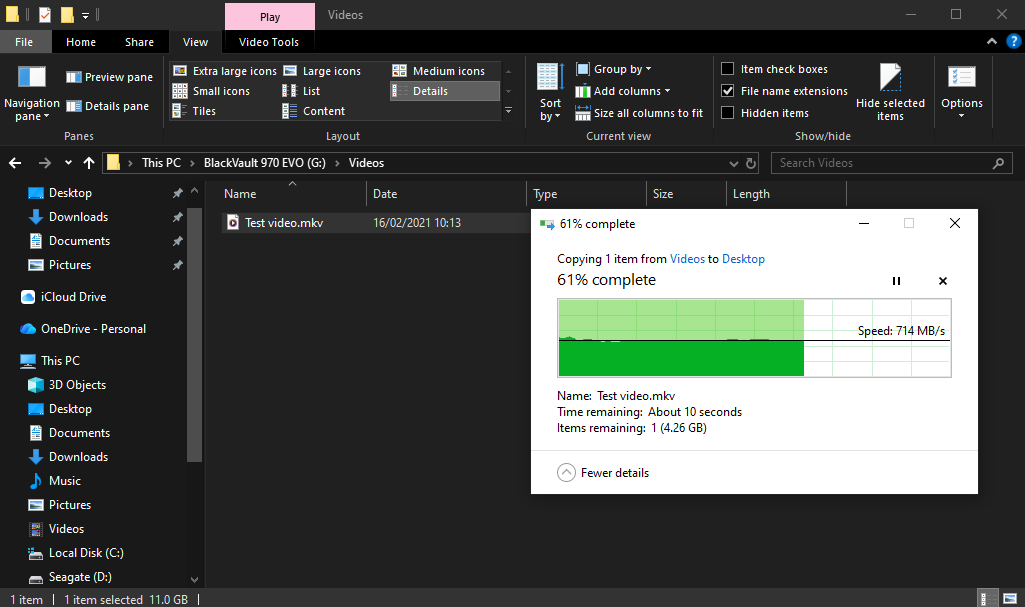
Copying an 11 GB video from a Mac SSD to the desktop at 714 MB/s, with File Explorer’s own copy dialog.
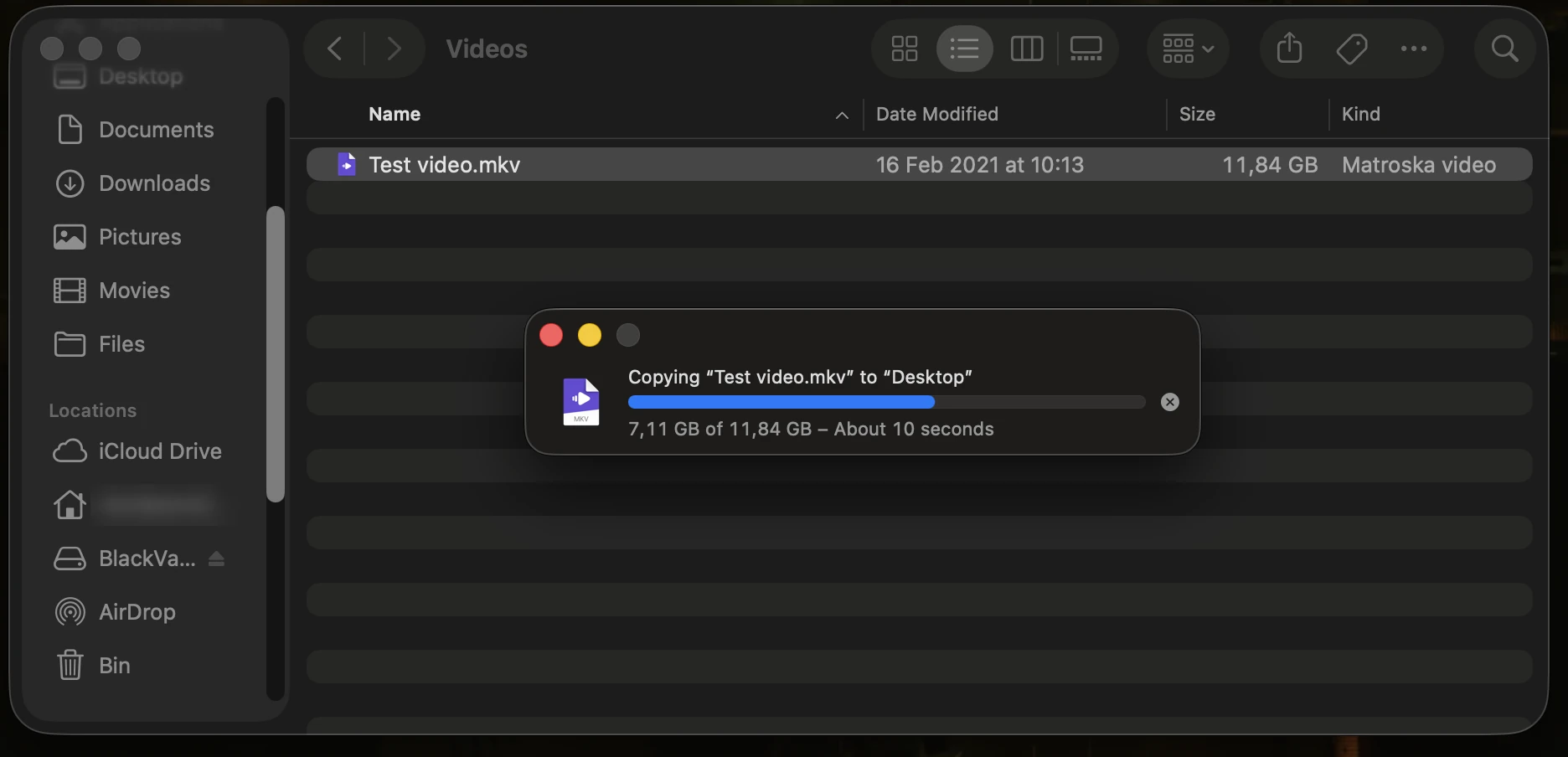
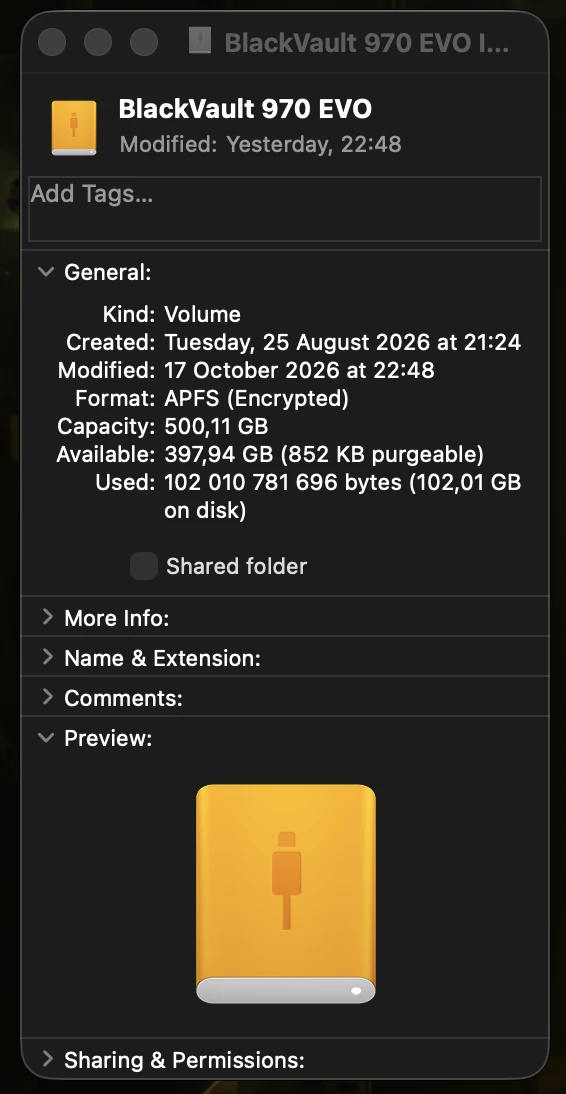
Plug it back into the Mac
Nothing gets converted. The drive stays an encrypted APFS volume, and the Mac opens it as usual.
What it does
Mounts automatically
A background service watches USB, and a Mac drive gets its own drive letter within seconds of plugging it in. “Safely remove hardware” saves pending changes first.
Reads and writes, crash-safe
Create, edit, delete, rename and move files and folders. Changes are APFS transactions with copy-on-write and checkpoints, as on macOS: if the drive is unplugged or the power fails mid-write, it comes back in its last saved state.
Mac file names, intact
Unicode names from macOS, case-sensitive volumes, hard links, and files that macOS compressed with zlib or LZVN. Characters Windows forbids, like : ?, show as look-alikes and stay unchanged on the Mac.
Tested, not guessed
Over 100 automated tests, including simulated power loss at every write and random operation sequences checked against a model.
Encrypted drives, same password as on the Mac
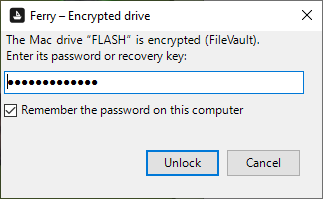
When you plug in a volume that was encrypted with FileVault, Ferry asks for its password or recovery key. A wrong password just asks again.
Tick “Remember the password on this computer” and the drive opens by itself next time. The password is stored encrypted with Windows DPAPI, tied to this PC. You can forget all remembered passwords in Settings.
Read-only until you say otherwise
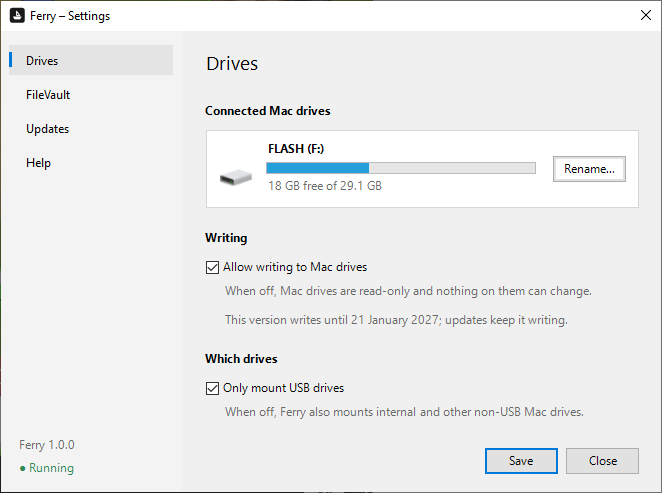
Out of the box Ferry only reads. To write, open Ferry Settings and turn on “Allow writing to Mac drives”. It switches on only after you tick:
“I have a backup of my Mac drives and of the files I copy to them, and I write at my own risk.”
Before the first change on a drive after you connect it, Ferry checks the drive’s free-space records. If they don’t add up, the drive stays read-only and Windows shows a notification suggesting First Aid on a Mac.
The same window lists connected Mac drives with a Rename button, limits mounting to USB drives, shows whether the background service is running, checks for updates, and opens the log if something goes wrong.
As fast as the cable allows
Measured on a FileVault-encrypted Samsung 970 EVO in a USB 3.2 Gen 2 (10 Gbps) enclosure with 35,553 files. Reading the raw disk without Ferry reaches about 850–890 MB/s on the same setup.
- Reading a video file
- ~800 MB/s
- one or four files at once, decrypted on the fly
- Listing the whole drive
- 7.5 s
- 35,553 files and their folders
- Opening small files
- 4 ms
- per file, open and read the first 64 KB
Single measurement on one machine. Your results depend on the drive, enclosure, cable and USB port. A port that keeps resetting the USB connection can drop speed to a few MB/s.
Questions
- Is Ferry free?
- During the public beta, every feature is free, including writing. After the beta, reading Mac drives, unlocking FileVault included, stays free; writing will be a one-time purchase, with no subscription and no account. Ferry is made by a private individual, not a company.
- Can writing from Windows damage my drive?
- Any software that writes to a drive can, which is why writing is off until you turn it on. Ferry writes the way macOS does, and automated tests cut the power at every write to check that the drive always comes back in its last saved state. Still, keep a current backup of anything important and, after your first writes from Windows, run Disk Utility → First Aid on a Mac.
- What if the power fails or the cable is pulled mid-copy?
- The drive comes back exactly as it was at the last save, a second earlier at most. Files already on it are untouched; only the file being copied is incomplete, so copy it again. An unfinished copy never looks complete to a later copy or sync.
- Why does writing stop after 90 days?
- So nobody keeps writing to their drives with an old build that has a bug fixed long ago. Each version writes for 90 days after its release, then keeps your drives readable until you update; Ferry reminds you in time, and updating is one click in Settings. For the same reason, if a version turns out to have a serious bug, the update file can switch writing off in that version until a fix is out. Reading never expires and is never switched off. The update check sends no ID and no telemetry, see the Privacy Policy.
- The drive disconnects or a copy freezes. What now?
- Almost always it’s the connection, not the drive. Ferry shows a warning when the drive stops answering. Try another USB port, plug in directly instead of through a hub, and with USB-C try turning the plug around. If Windows says “USB device not recognized”, unplug the drive and connect it again.
- How do I report a problem?
- In Ferry Settings, go to Help → Report a problem…, describe what happened and click Send. Ferry sends your description with its versions, settings and log, so I can see what went wrong; you get a report number. Nothing is sent before you click Send (see the Privacy Policy). You can also email [email protected]; the log is in
%ProgramData%\Ferry\ferry.log(Settings → Help → Open log). - What do I need to install?
- Just Ferry-Setup.exe. If needed it also installs Dokany, the open-source file system driver (signed by Microsoft) that lets Windows show the drive. Works on 64-bit Windows 10 and 11, on Intel and AMD as well as ARM processors (for example Snapdragon laptops); the installer picks the right version.
Technical details
For people who want to know what they are installing.
- Driver
- Dokany (LGPL v3), a user-mode file system driver signed by Microsoft. Works with Secure Boot on.
- Service
- Background Windows service that watches for USB drives and mounts APFS volumes. Starts automatically.
- Encryption
- FileVault (AES-XTS), unlocked with the volume password or recovery key.
- Supported
- Case-sensitive and case-insensitive volumes, Unicode names, hard links, zlib and LZVN compressed files, hidden and read-only attributes. Renaming the volume.
- Testing
- Over 100 automated tests: power loss simulated at every write, model-checked random operations, concurrency, FileVault, mounts through a real drive letter. Unencrypted results also pass apfsck -cuw.
- Monitoring
- A read or write that fails or takes over 15 seconds shows a Windows notification, so a frozen copy doesn’t leave you guessing.
- Updates
- A check at start and every hour of update.json on this website, without telemetry or ID (details). Installers come from dl.ferryfs.app, and their SHA-256 is verified before they run.
- Files
- Settings and log in %ProgramData%\Ferry\
- Installer
- SHA-256 714fede7f0bdfa26dfbc1b3d8d76a4c11d571f4e2486ea2ad440518cc88e39c2 · VirusTotal report
Known limitations
- Files compressed with LZFSE or LZBITMAP (mostly macOS system files) cannot be opened.
- Volumes with snapshots (for example Time Machine), sealed system volumes, Fusion Drive and very large containers (above roughly 7.8 TiB) mount read-only.
- Symbolic links appear as small read-only files that contain the link target.
- Internal drives of T2 and Apple Silicon Macs (per-file encryption keys) cannot be unlocked.